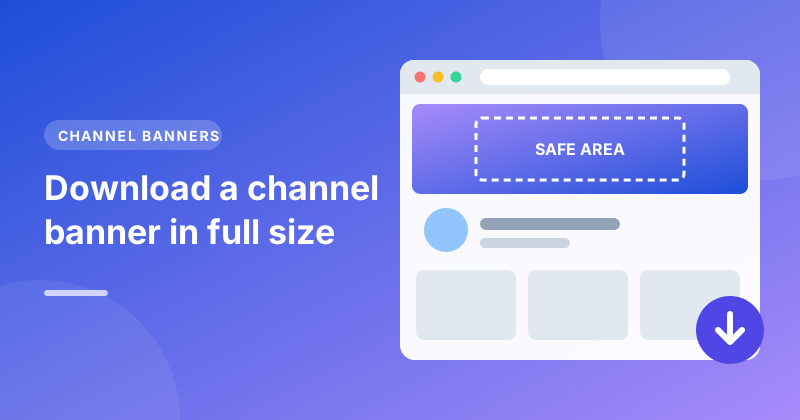
The banner across the top of a channel page, also called channel art, is one of the first things a visitor sees. If you want a copy, a screenshot is a poor substitute: YouTube crops the banner differently on phones, computers and TVs, so a screenshot only ever captures part of it, and at a lower resolution than the original.
Our Channel Banner Downloader gets the full image the creator uploaded.
Step 1: Copy the channel's handle or link
Any of these work:
- The @handle shown under the channel name.
- The channel's address, such as
youtube.com/@examplechannel. - A link to one of the channel's videos.
Step 2: Paste it and get the banner
Open the Channel Banner Downloader, paste what you copied and press Get banner. You'll see the channel's name and a full-width preview of its banner.
Step 3: Download it
Press Download to save the banner. Its exact size is shown under the preview. YouTube recommends creators upload banners at 2560×1440 pixels, so the file is usually much larger than the strip you see on the page.
Why the downloaded banner looks different
When you open the file you'll probably notice there's a lot more image than you're used to seeing. That's because YouTube shows different slices of the same banner on different screens:
- TVs show the whole image, 2560×1440 at the recommended size.
- Computers show a wide strip across the middle, about 2560×423.
- Phones show only the centre "safe area", about 1546×423.
Creators design their banner so the important parts, such as the name, logo and upload schedule, sit inside that safe area in the middle. Everything outside it is background that only appears on bigger screens.
Tip for creators: Download your own banner and look at the centre 1546×423 area. If any text falls outside it, phone viewers (who are most of your audience) can't see it.
Great uses for a downloaded banner
- Back up your channel art before you redesign it, so you can always go back.
- Get inspiration by comparing the banners of channels you admire. Look at how they use the safe area and how much text they include.
- Make a matching graphic. If you're collaborating with another channel, their banner shows you their colours and fonts.
As with any creator's artwork, ask permission before publishing someone else's banner.
Common questions
It says the channel has no banner. Some channels never uploaded one, and YouTube just shows a plain colour. There's nothing to download in that case.
Can I download an older banner the channel used before? No. YouTube only provides the current one.
Can I get the profile picture as well? Yes, with the Channel Logo Downloader. Our guide on downloading a channel's profile picture walks through it.
Try it now with the Channel Banner Downloader.