Your title has two jobs, and they pull in different directions. It has to tell YouTube and search engines what the video is about, so it gets shown to the right people. And it has to make a person scrolling past on their phone stop and tap. A title that only does the first job reads like a library index card. A title that only does the second is clickbait, and viewers who feel tricked leave in the first ten seconds, which tells YouTube the video wasn't what it promised.
This guide shows how to write titles that do both, and how to use our free Title Generator to get a page of ideas to start from.
Start with the words people actually type
Before you write anything, think about how someone would search for your video. Not how you'd describe it to a friend who's already watched it, but the words a stranger would type into the search bar.
A good trick is to start typing your topic into YouTube's own search box and look at the suggestions. Those come from real searches. If you made a video about fixing a dripping kitchen tap, the suggestions might include "how to fix a dripping tap" and "dripping tap washer replacement". That's the language your title should use.
Put that main phrase near the start of the title. Search results and suggested videos often cut titles short, and the first few words carry the most weight with viewers who skim.
Keep it under about 60 to 70 characters
YouTube lets you write up to 100 characters, but that doesn't mean you should. On phones and in the suggested videos column, titles are usually cut off somewhere around 60 to 70 characters. Anything after that point might as well not exist for most viewers.
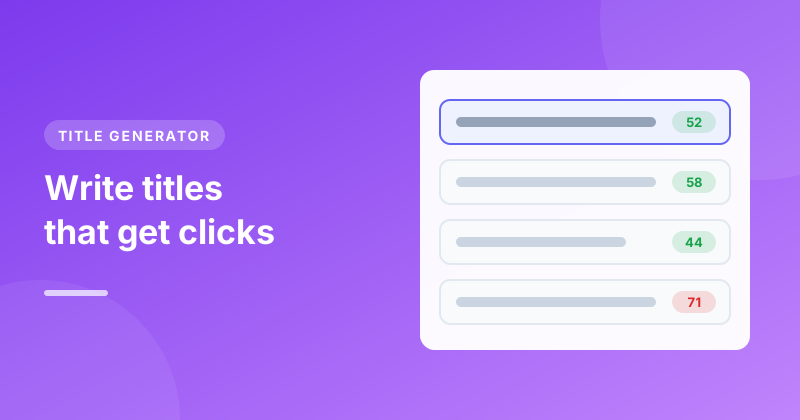
The Title Generator shows the length of every idea, so you can spot the ones that will fit. If a title you love is too long, cut filler words first: "a", "the", "really", "very" and "in this video" can almost always go.
Six title patterns that work
Most successful titles follow a handful of patterns. You don't need to be original about the structure, only about the detail you put in it.
- How-to. "How to Fix a Dripping Tap in 10 Minutes". Clear, searchable and ideal for tutorials.
- List. "7 Sourdough Mistakes Every Beginner Makes". Numbers set expectations and stand out in a page of text.
- Curiosity. "Why Your Sourdough Isn't Rising (It's Not the Yeast)". Raises a question the video answers.
- Result or transformation. "I Baked Bread Every Day for 30 Days. Here's What Changed". Promises a story with a payoff.
- Comparison. "Cheap vs Expensive Bread Flour: Can You Taste It?". Viewers love to see a verdict.
- Beginner or guide. "Sourdough for Complete Beginners: Step by Step". Tells newcomers this is the right video to start with.
In the Title Generator, type your topic and pick a style such as How-to, List or Curiosity, or leave it on All styles for a mix. Press Generate titles and you'll get a batch of ideas built on these patterns. Press Generate more for another batch.
Add the one detail only your video has
Templates give you structure, but the part that makes someone click is specific. Compare these:
- "How to Make Sourdough Bread"
- "How to Make Sourdough Bread With Only 3 Ingredients"
- "How I Make Sourdough Bread Before Work (20 Minutes Hands-On)"
The second and third titles say something the hundreds of other sourdough videos don't. Look for a number, a time, a place, a result or a constraint that's true of your video and add it. A generated idea is a starting point, so tweak it until it describes your video and no one else's.
Write the title and thumbnail together
People see your title and thumbnail at the same moment, so they should work as a pair rather than repeat each other. If the title says "I Tried the Viral 5-Minute Bread Recipe", the thumbnail doesn't need those words. It can show the loaf with two words like "IT WORKED?" instead. The Thumbnail Text Generator gives you short text ideas and previews how each one reads on a thumbnail.
Mistakes that cost views
- Promising something the video doesn't deliver. It might win a click, but viewers leave quickly, and YouTube notices.
- All capitals. One word in capitals for emphasis is fine. A whole title in capitals reads as shouting and looks spammy.
- Stuffing keywords. "Sourdough Bread Recipe Easy Sourdough How to Make Sourdough" helps no one. Use your main phrase once, naturally.
- Vague titles. "My New Video!" or "Vlog #47" give a stranger no reason to click and give YouTube nothing to match against searches.
- Hiding the topic at the end. If the important words are after character 60, many viewers will never see them.
Test, then improve
You don't have to get it perfect on day one. Titles can be changed at any time in YouTube Studio. After a few days, open the video's analytics and look at the impressions click-through rate. If people are seeing the video but not clicking, try a different title, ideally changing one thing at a time so you can tell what helped. Eligible channels can also use the Test & Compare feature in YouTube Studio to try different versions against each other.
A quick title checklist
Before you publish, check that your title:
- Uses the words people search for, near the start
- Fits in about 60 to 70 characters
- Says something specific that's true of this video
- Works together with the thumbnail instead of repeating it
- Makes a promise the video keeps
Once your title is ready, use the same keyword in the first line of your description. The Description Generator can write one around the same topic, with chapters, links and hashtags.