Hashtags on YouTube are simpler than on most social networks, and more often misused. Add a few good ones and your video joins a page of related videos that people can browse. Add thirty and you've cluttered your description for very little gain. Add more than sixty and YouTube ignores every one of them.
This guide explains how YouTube hashtags actually work, how to pick the right ones and how to use our free Hashtag Generator to build a list quickly.
What a hashtag does on YouTube
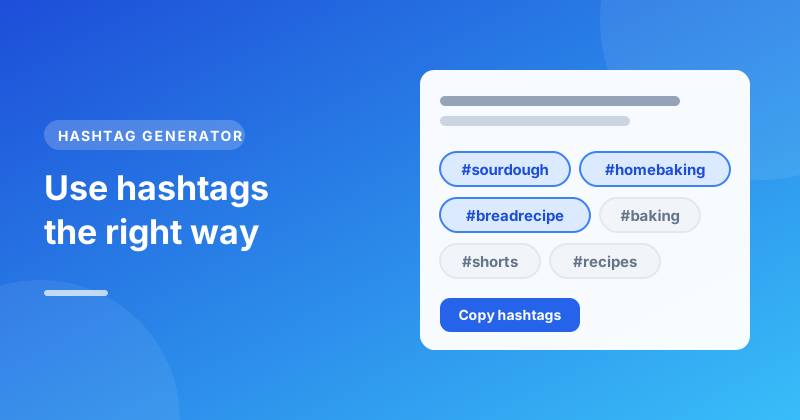
A hashtag is a word or phrase with a # in front, like #sourdough or #homebaking. On YouTube, each hashtag becomes a link. Clicking it opens a page showing other videos and Shorts that use the same hashtag.
That gives hashtags two uses:
- Discovery. Someone browsing
#sourdoughmight find your video there. - Context. Hashtags are another signal about what your video covers, alongside the title and description.
They're a helper, not a growth hack. A great video with no hashtags will still find its audience. A weak video won't be rescued by them.
Where to put hashtags
There are two places hashtags work on a YouTube video:
- The description. This is the usual place, often at the very end. YouTube takes the first three hashtags from your description and shows them as links above the video's title.
- The title. You can include one or two hashtags in the title itself. If you do, they're shown instead of the description hashtags above the title. Use this sparingly, since hashtags in a title take up valuable characters.
How many hashtags should you use?
A handful. Three to fifteen relevant hashtags is a sensible range, and for most videos three to five specific ones is plenty. Only the first three are shown above the title, so make those your best.
There's a hard limit too: if a video has more than 60 hashtags, YouTube ignores all of them. Very long lists can also look like spam to viewers and to YouTube.
How to choose good hashtags
The best hashtags describe what the video is actually about. A useful way to build a list is to mix three levels:
- Specific: the exact topic, such as
#sourdoughstarteror#nokneadbread. - Niche: the wider area, such as
#breadbakingor#homebaking. - Broad: a big category, such as
#bakingor#recipes.
Specific hashtags have less competition, so your video is more likely to be seen on their page. Broad ones are busier but tell YouTube the general area. Lead with the specific ones, since the first three are the ones that show.
Avoid hashtags that have nothing to do with the video, even if they're popular. YouTube's policies say misleading or unrelated hashtags can get them removed, and viewers who arrive expecting something else won't stay.
Do Shorts need #Shorts?
Not any more. YouTube recognises a Short from its shape and length, so any vertical video up to three minutes counts without the hashtag. Many creators still add #Shorts because it puts the video on the #Shorts hashtag page, and it does no harm. In the Hashtag Generator, tick It's a Short to include it.
Hashtags vs tags
These get confused a lot, but they're different things:
- Hashtags start with # and are visible to viewers, in the description and above the title.
- Tags are hidden keywords you add in YouTube Studio under the video's details. YouTube says they play only a small role in discovery, mostly helping with common misspellings of your topic.
If you only have time for one, focus on a good title and description. Hashtags come next, and tags last.
Build a list in seconds
In the Hashtag Generator:
- Type your video's topic or a few keywords, separated by commas, for example "sourdough bread, baking".
- Pick your niche to add popular tags from it, and tick It's a Short if needed.
- Press Generate hashtags. The best 15 are selected for you; tap any hashtag to add or remove it.
- Press Copy hashtags and paste them at the end of your description.
Then trim. Read the list and remove anything that doesn't describe your video, and move the three most specific hashtags to the front.
Common mistakes
- Using dozens of hashtags. It clutters the description and, past 60, cancels them all.
- Unrelated trending hashtags. They don't bring the right viewers and can break YouTube's rules.
- Hashtags with spaces.
#home bakingbecomes#homefollowed by the word "baking". Join words together:#homebaking. - Putting hashtags first. Starting your description with hashtags wastes the lines people read in search results. Put them at the end.
Quick checklist
- Three to fifteen hashtags, all relevant to the video
- The three most specific ones first, since they appear above the title
- No spaces inside a hashtag
- Placed at the end of the description, not the start
Your description's opening lines matter more than any hashtag. If you want a hand with those, read our guide on how to write a YouTube video description, which also includes a template with space for your hashtags.